

Introduction
The Aadhaar card is one of the most important identity documents for all Indian citizens. Aadhaar PDF are purposely secured to protect your personal data but always entering the password can become awkward. This guide provides secure, legal methods to remove the password from your Aadhaar PDF guaranteeing convenience without compromising data integrity.
Table of Contents
-
Understanding Aadhaar PDF Password
-
Method 1: Using Google Chrome (Browser Method)
-
Method 2: Using Adobe Acrobat Pro (Professional Solution)
-
Method 3: Using Softaken Unlock PDF Files (Recommended)
-
Security Considerations and Legal Compliance
-
Summary and Recommendations
1. Understanding Aadhaar PDF Password
The e-Aadhaar file uses a password that typically combines your name and your date of birth in uppercase for example, ANJA1995. It is designed to protect sensitive ID data.
2. Method 1: Google Chrome — Quick and Free
Google Chrome offers a simple solution.
Steps:
-
Open the Aadhaar PDF in Chrome and enter the password to access it.
-
Press Ctrl + P (Windows) or use the Print icon then select “Save as PDF” as the destination.
-
Save the file it will be password-free.
⚠️ Note: This method only works if you know the password.
3. Method 2: Adobe Acrobat Pro — Professional Option
For users with access to Adobe Acrobat Pro it offers another way to remove PDF passwords:
Steps:
-
Open the Aadhaar PDF in Acrobat Pro and enter the password.
-
Navigate to Protect → Set Security Properties.
-
Change the Security Method to “No Security”.
-
Save the document.
⚠️ Note: Requires a paid subscription however trials may be available.
4. Method 3: Using Softaken Unlock PDF Files (Recommended)
Softaken offers a reliable solution for unlocking PDF allowing you to remove passwords as well as other restrictions. This method guarantees your Aadhaar PDF is decrypted securely while preserving the content intact.
Read More: How to Unlock Aadhaar Card PDF Password?
Steps to use Softaken Unlock PDF Files:
-
Download and install Softaken Unlock PDF Files Software.
-
Launch the tool on your Windows system.
-
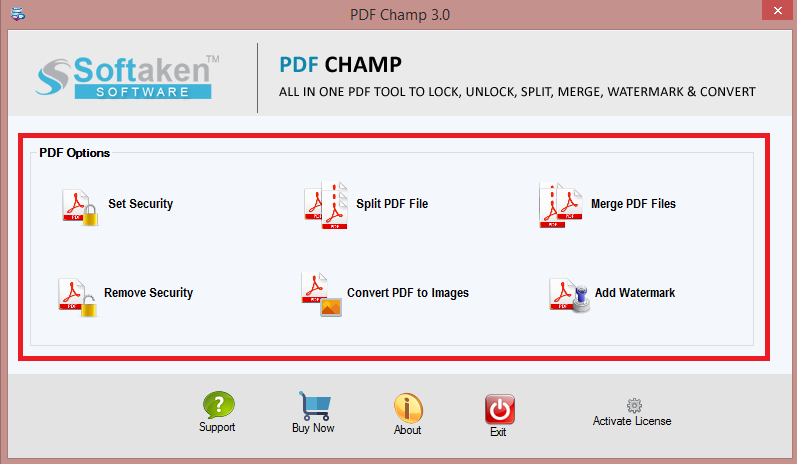
Select the Remove Security options.
-
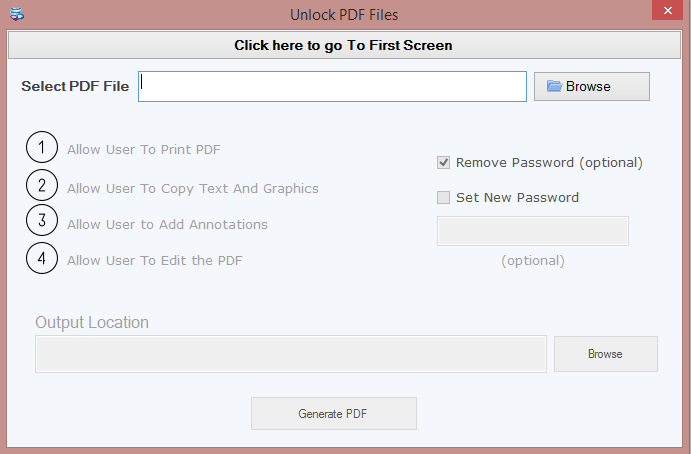
Add your Aadhaar PDF file to the program.
-
Then choose the location to save the PDF files.
-
Click on the Generate PDF options to start the unlocking process.
Why is this the best practice?
-
Designed for batch processing and preserving file integrity.
-
Maintained by Softaken a trusted software with no file damage, quick performance and high user ratings (4.9 out of 5).
5. Security Considerations and Legal Compliance
-
Always ensure you own or are authorized to modify the PDF. Unlocking documents without consent can violate legal or contractual terms.
-
Avoid online and cloud-based PDF unlockers—these can expose sensitive personal information. Stick to trusted local tools like Softaken.
-
Maintain encrypted backups of your original Aadhaar PDF in case you need to revert or verify authenticity.
-
Softaken approach preserves file content without changing layout or metadata guaranteeing data integrity remains intact.
6. Summary and Recommendations
Comparison Table:
| Method | Best For | Security Level | Ease of Use |
|---|---|---|---|
| Softaken Unlock PDF Files | Secure batch unlocking, full control | High (local, reliable) | Moderate |
| Google Chrome | Quick, password-known scenario | Medium (no install) | Very High |
| Adobe Acrobat Pro | Professional editing workflows | High (trusted tool) | Moderate (paid) |
Recommended: Use Softaken Unlock PDF Files for a secure and reliable solution to safely remove Aadhaar PDF passwords.
Closing Note
By following this guide you can remove the Aadhaar PDF password securely while maintaining data privacy and integrity. For users who value both safety and convenience Softaken Unlock PDF Files offers a secure solution.

You must be logged in to post a comment.