
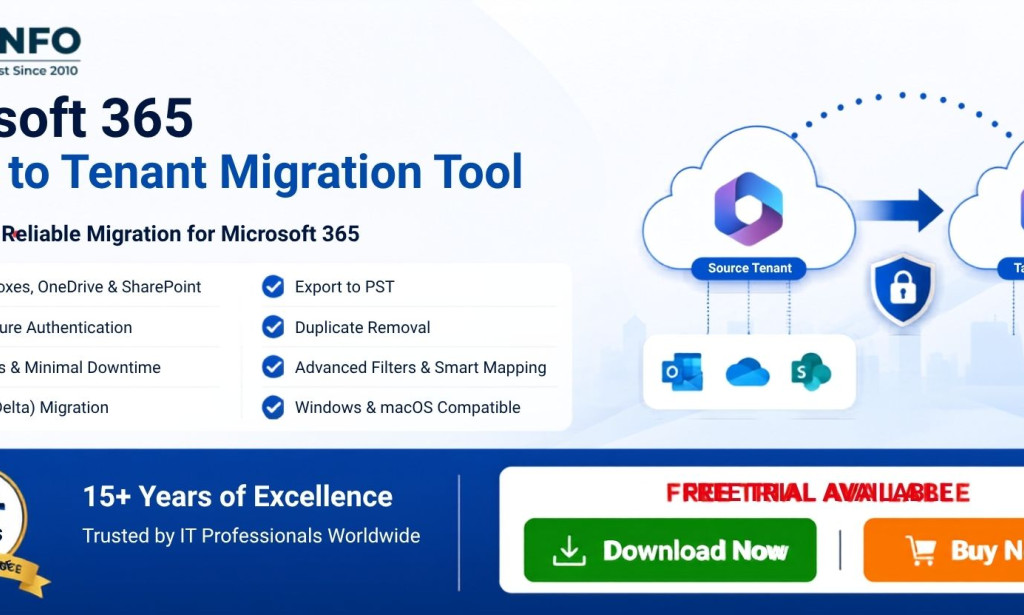
Organizations today are more dynamic than ever — mergers, acquisitions, divestitures, and rebranding initiatives are common events that force IT teams to rethink their cloud infrastructure. One of the most technically demanding tasks that arises from these business changes is Office 365 Tenant-to-Tenant Migration. Moving mailboxes, files, Teams data, and permissions from one Microsoft 365 environment to another is rarely simple, and getting it wrong can mean lost data, broken collaboration, and frustrated end users.
This guide breaks down what Office 365 Tenant-to-Tenant Migration actually involves, why businesses need it, and the two most reliable ways to carry it out in 2026.
What Is Office 365 Tenant-to-Tenant Migration?
Office 365 Tenant-to-Tenant Migration refers to the process of transferring an organization's entire Microsoft 365 environment — including mailboxes, contacts, calendars, OneDrive files, SharePoint sites, and Teams data — from a source tenant to a destination tenant. Unlike a simple mailbox move within the same tenant, a Microsoft 365 Tenant to Tenant Migration involves shifting data across two completely separate Azure Active Directory (Entra ID) environments, each with its own domains, licensing, and security policies.
This distinction matters because tenant boundaries in Microsoft 365 are strict. Native tools built for intra-tenant moves generally can't be used to shift data between unrelated tenants, which is why specialized planning and tooling are required for a successful Microsoft 365 Cross-Tenant Migration.
Why Businesses Need Office 365 Tenant-to-Tenant Migration
There are several real-world scenarios that push IT departments toward Office 365 Tenant-to-Tenant Migration:
- Mergers and Acquisitions – When two companies combine, their Microsoft 365 tenants typically need to be consolidated into one, requiring a full Office 365 Mailbox Tenant Migration for every affected user.
- Divestitures and Spin-Offs – When a business unit is sold or separated, its data must be extracted from the parent tenant and moved into a brand-new, independent environment.
- Rebranding or Domain Changes – A company changing its name or primary domain may need to migrate to a tenant that reflects the new identity.
- Cloud Consolidation – Enterprises running multiple tenants due to past acquisitions often want to simplify management by merging everything into a single, unified tenant.
- Compliance and Regional Requirements – Data residency laws sometimes require organizations to move tenants to align with regional hosting requirements.
In every one of these cases, the goal is the same: move users, mail, files, and permissions with zero data loss and minimal downtime — while keeping end users productive throughout the transition.
Challenges of Microsoft 365 Cross-Tenant Migration
Before choosing a migration method, it's worth understanding what makes this process complex:
- Mailbox Item Limits – Native PowerShell-based approaches can hit throttling limits, especially with large mailboxes.
- Metadata Preservation – Retaining folder structures, read/unread status, categories, and permissions is difficult without the right tools.
- Teams and SharePoint Dependencies – Group memberships, channel conversations, and site permissions don't migrate cleanly using basic scripts.
- Downtime Management – Coordinating DNS changes, MX record cutovers, and Autodiscover updates without disrupting mail flow requires careful sequencing.
- Licensing and Identity Mapping – Each user in the source tenant needs a corresponding, correctly licensed account in the destination tenant before migration begins.
These challenges are exactly why so many IT teams look beyond manual scripting when planning an Office 365 Mailbox Tenant Migration.
Method 1: Manual Office 365 Tenant-to-Tenant Migration
The manual approach relies on native Microsoft tools such as PowerShell scripts, the Microsoft 365 Admin Center, and third-party mail-flow connectors. A typical manual workflow looks like this:
- Pre-Migration Assessment – Inventory all mailboxes, OneDrive accounts, SharePoint sites, and Teams in the source tenant.
- Domain Preparation – Add and verify the source domain in the destination tenant (this requires temporarily removing it from the source).
- User Provisioning – Create matching user accounts and assign licenses in the destination tenant.
- Data Migration Scripts – Use PowerShell cmdlets and the Microsoft Graph API to move mail items, contacts, and calendar data.
- DNS and MX Cutover – Update MX, Autodiscover, and SPF records to point to the new tenant.
- Post-Migration Validation – Manually verify mailbox contents, permissions, and Teams data for every user.
While technically possible, this method is time-consuming, error-prone, and generally only realistic for very small organizations with just a handful of mailboxes. For any environment with dozens or hundreds of users, manual scripting becomes a significant operational risk.
A Smarter Option: Automated Software Solutions
Given the limitations of manual methods, most IT teams performing a Microsoft 365 Tenant to Tenant Migration at scale turn to dedicated migration software. These tools are purpose-built to handle mailbox, OneDrive, SharePoint, and Teams migrations with automated mapping, incremental syncing, and detailed reporting — removing much of the guesswork from the process.
One such solution is the SysInfo Microsoft 365 Tenant to Tenant Migration Tool. It is designed specifically to simplify Office 365 Tenant-to-Tenant Migration by automating mailbox mapping between source and destination tenants, migrating mail, contacts, calendars, and public folders, and offering incremental/delta migration to keep data in sync until final cutover. Tools like this also typically provide pre-migration reports, priority-based scheduling, and detailed migration summaries, giving administrators visibility and control that manual scripts simply can't match.
Method 2: Automated Office 365 Tenant-to-Tenant Migration
The automated approach follows a more structured, guided workflow:
- Connect Source and Destination Tenants – Authenticate both environments within the migration tool using admin credentials.
- Map Users – Match source mailboxes to their corresponding destination accounts, either manually or via CSV import.
- Select Data Categories – Choose whether to migrate mailboxes only, or include OneDrive, SharePoint, and Teams content as well.
- Run Migration with Filters – Apply date-range or folder-level filters to control scope and reduce migration time.
- Incremental Sync – Perform delta migrations to capture new emails received during the migration window.
- Final Cutover – Update DNS records and decommission the source tenant access once validation is complete.
This method drastically reduces manual effort, minimizes downtime, and scales easily whether you're migrating 10 mailboxes or 10,000.
Manual vs. Automated: Which Should You Choose?
For very small businesses with minimal data, a manual Office 365 Mailbox Tenant Migration might be workable with patience and technical expertise. However, for mid-size to large organizations, automated tools offer far better reliability, speed, and data integrity — especially when Teams, SharePoint, and large mailboxes are involved.
Conclusion
Office 365 Tenant-to-Tenant Migration is a critical undertaking for any organization going through structural change in 2026. Whether driven by a merger, rebrand, or compliance requirement, the process demands careful planning around domains, licensing, and data integrity. While manual migration remains an option for very small setups, most businesses will find that a dedicated Microsoft 365 Cross-Tenant Migration tool — such as the SysInfo Microsoft 365 Tenant to Tenant Migration Tool — offers a faster, safer, and far more predictable path to a successful tenant transition.

You must be logged in to post a comment.