

VCF Files: A typical file format for storing contact data is a VCF file, also referred to as a vCard. The exchange of contact data across apps and devices is one of its common uses. Contact information, including name, address, phone number, email address, and other contact data, is usually included in a VCF file.
VCF files are widely used to provide contact information to other persons. They can be kept on a computer or sent as an attachment to an email. By opening a VCF file, a recipient can import contact data into their address book or contact list. VCF files can be opened by a wide range of uses, including contact control, email clients, and mobile devices.
Why Would Person Want to Open a VCF File on an Excel sheet?
While there are many reasons for users to do this task, the following are some common ones:
- Excel puts contact details into neat, orderly rows and columns when you open several VCF files that have the data. This process is similar to making a list. It's now easy to view and manage contact information.
- You can organize the contact details anyway you'd like in Excel. You can even list them alphabetically (A to Z) so you can find a certain contact quickly.
- When there are mistakes or alterations to the data, Excel makes it easy to fix and update the information.
- Excel's advanced data analysis tools enable users to compute, filter, and aggregate data to get insightful information from contact details.
- VCF files can be united with other data sources, such email lists or customer databases, to form a whole contact list.
- Since Excel files can be swiftly exchanged and agreed upon, they are a helpful tool for exchanging contact information with others.
- By accessing VCF files in Excel, users can swiftly manage, review, and exchange contact information. It is therefore a practical tool for both laypeople and experts.
How Can I Open an Excel Spreadsheet that Contains a VCF file?
Here, we'll quickly go over the various methods for gaining access to the VCF data files within an Excel sheet. Thus, let's begin with the internet approach first:
Online Excel to VCF Conversion Tools
Online converters from VCF to Excel are programs that let users convert VCF files into Excel files without installing any software. These converters available online are practical and simple to use. However, they also have certain disadvantages. One of the primary disadvantages is the security issue, which implies that users must provide their personal contact information when uploading VCF files to online converters, thereby raising security issues. There is a chance that data theft will occur since some converters store the uploaded files on their servers.
How to Access a VCF File Manually in an Excel Sheet
Let's see how to open a VCF file in an Excel spreadsheet using the manual method:
- Launch the Microsoft Excel program on your PC.
- Go to "File," "Open," then "Browse" after that.
- Go to the required VCF file and open it.
- The "Text Import Wizard" will then launch immediately in Microsoft Excel.
- Choose "Delimited" under "Original Data Type" after that.
- To continue, click the "Next" button now.
- Choose "Other" and enter ":" in the box next to it after selecting "Tab" and "Semicolon" as your "delimiters" in this instance.
- Click "Next" now, and then "Finish" to conclude the process.
Automated Tool: Access and Utilize VCF Contact within an Excel Document:
Users can now simply Move & Manage VCF/vCard Contacts in an Excel Sheet with the help of this WholeClear VCF to CSV Converter Tool. Users can use this application to save vCard contacts in CSV format for Excel. There are no chances of data corruption once the conversion process begins. Both technical and non-technical users can also make use of this tool. The application has multiple client features and functions that make the conversion process simpler. Grab the free demo edition of this tool without any payment.
What is the Process to Open VCF Files in an Excel Spreadsheet?
Here is a brief summary of the procedures and rules related to the conversion process:
- Download, install, and launch the software on your local PC.
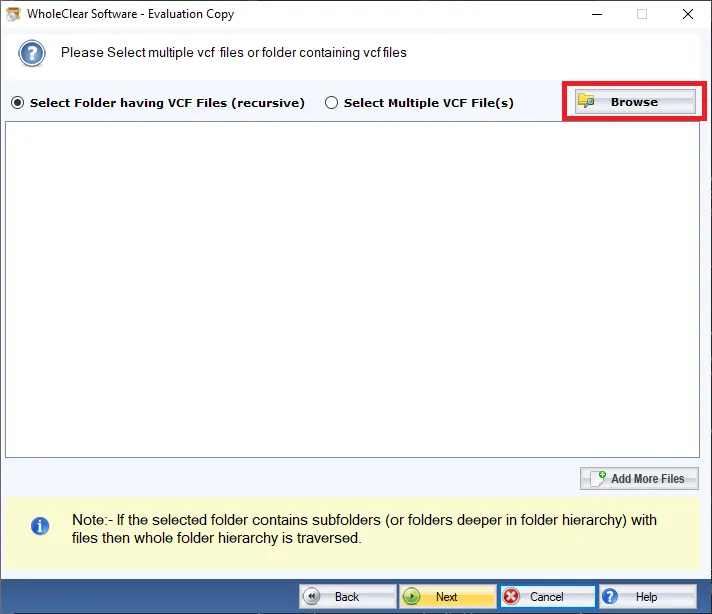
- You can upload files and directories in the VCF format using the "Add files" and "Add folders" buttons.
- You can now preview any VCF file using the program interface. Depending on what you require, pick the files you desire from this list.
- Next, select "CSV" as the "saving option" from the list of available file-saving options.
- Choose the desired destination directory in order to save the generated CSV files.
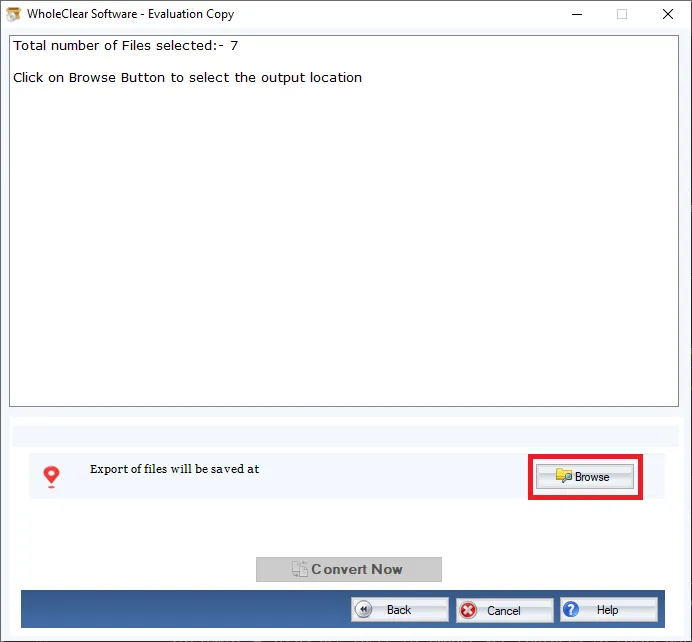
- When every choice has been correctly applied, click "Convert" to start the conversion process.
- A pop-up compilation notification appears on your software interface.
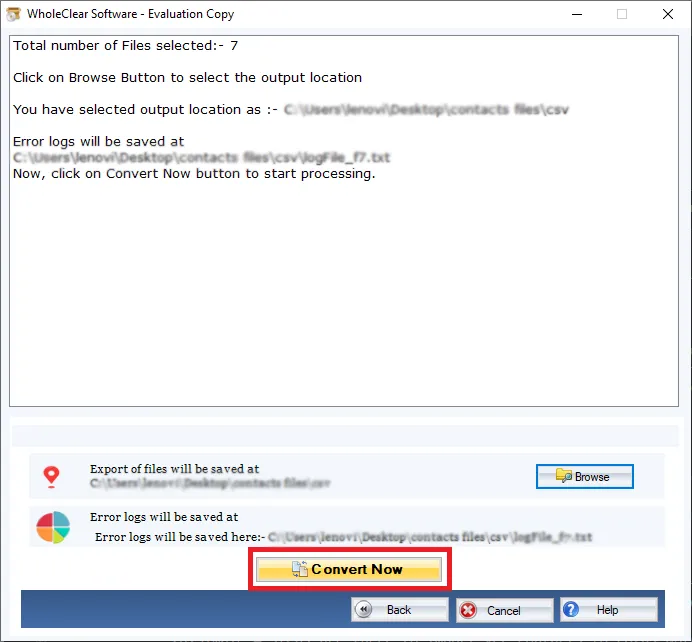
- The application will then launch the destination route that you previously specified automatically.
- Currently, to open the selected CSV file in Microsoft Excel, "right-click" it, choose "Open With," and then select "Excel".
To Sum Up,
Visitors to this site will find it easy to convert VCF contacts to CSV file format. You can download this application for free to anyone using any version of Windows OS. Data corruption can't occur after the conversion process has begun. Users can download this application safely from the official website. If clients want to convert more VCF contacts to CSV, they need purchase the full edition.

You must be logged in to post a comment.