
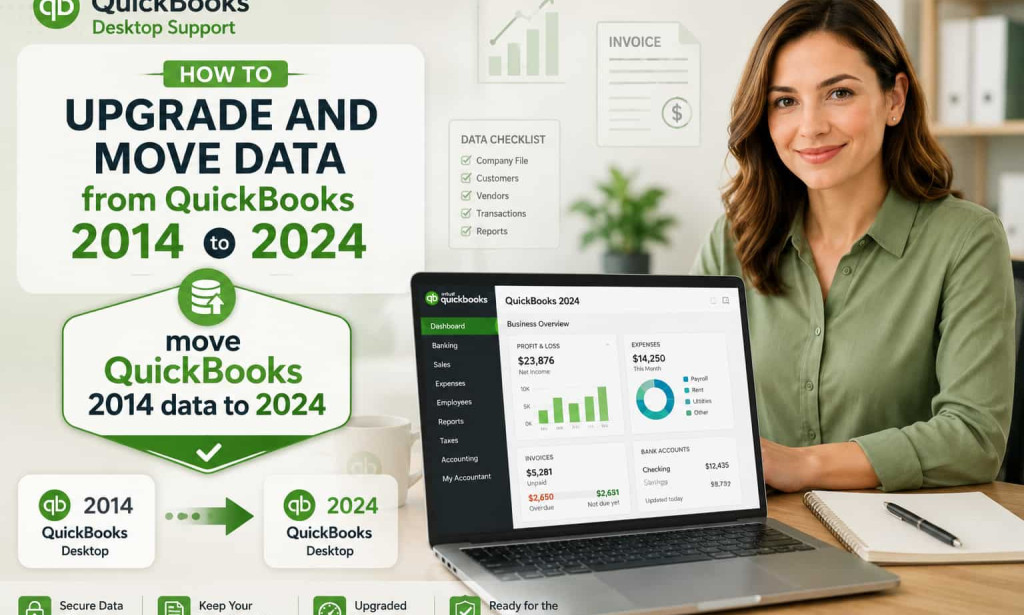
Many businesses still use older accounting software versions because they are familiar, stable, and already integrated into their daily workflow. However, using outdated accounting software like QuickBooks 2014 can create serious challenges over time. Older versions no longer receive security updates, payroll support, bug fixes, or compatibility improvements. As technology evolves, businesses often need to upgrade their systems to improve performance, security, and financial management.
If you are planning to move QuickBooks 2014 data to 2024, it is important to follow the correct migration process to avoid data corruption, missing transactions, payroll errors, or file compatibility issues. Upgrading to QuickBooks 2024 provides access to advanced features, better reporting tools, improved security, faster processing speed, and enhanced payroll integration.
Many business owners worry about losing important accounting records during migration. Fortunately, QuickBooks provides built-in tools that make it possible to transfer company files, customer records, payroll information, invoices, reports, and tax data safely from older versions to newer editions.
In this complete guide, you will learn how to upgrade and move QuickBooks 2014 data to 2024 step by step. You will also learn common migration problems, troubleshooting methods, best practices, and expert tips to ensure a smooth QuickBooks upgrade experience.
Why Businesses Upgrade from QuickBooks 2014 to 2024
Many companies decide to upgrade because older software versions become difficult to maintain over time.
Major Reasons to Upgrade
1. Security Improvements
QuickBooks 2024 includes advanced security protections that help protect sensitive financial information from cyber threats and unauthorized access.
2. Better Performance
Newer versions process large company files faster and improve overall software stability.
3. Payroll Compatibility
QuickBooks 2014 no longer supports modern payroll tax table updates, which may create compliance risks.
4. Improved Reporting Features
QuickBooks 2024 offers advanced financial reports, customizable dashboards, and enhanced analytics.
5. Cloud and Integration Support
Modern QuickBooks versions support cloud integrations, third-party apps, and online banking synchronization.
6. Multi-User Enhancements
Businesses with multiple employees can benefit from improved collaboration and user access management.
Things to Do Before You Move QuickBooks 2014 Data to 2024
Preparation is extremely important before starting the migration process.
1. Check System Requirements
QuickBooks 2024 requires modern hardware and operating systems.
Recommended Requirements
-
Windows 10 or Windows 11
-
Minimum 8 GB RAM
-
Stable internet connection
-
SSD storage preferred
-
Updated Microsoft .NET Framework
Using outdated hardware may cause installation failures or slow performance.
2. Create a Full Backup
Before upgrading, create a complete backup of your QuickBooks 2014 company file.
Steps to Backup QuickBooks Data
-
Open QuickBooks 2014.
-
Go to File.
-
Select Back Up Company.
-
Choose Create Local Backup.
-
Save the backup securely.
Always store backup copies on:
-
External drive
-
Cloud storage
-
USB device
A backup protects your financial data if migration fails.
3. Verify Company Data
Damaged files can create migration problems.
Steps to Verify Data
-
Open QuickBooks 2014.
-
Go to File.
-
Select Utilities.
-
Click Verify Data.
If QuickBooks finds errors, rebuild the file before upgrading.
4. Rebuild Company File
If verification detects issues, rebuild the data.
Steps
-
Go to File.
-
Select Utilities.
-
Click Rebuild Data.
-
Follow on-screen instructions.
This process repairs file damage before migration.
5. Update QuickBooks 2014
Install the latest available updates for QuickBooks 2014 before upgrading.
Updated software reduces compatibility problems.
How to Install QuickBooks 2024
Before transferring data, install QuickBooks 2024 properly.
Installation Steps
-
Download QuickBooks 2024.
-
Run the installer.
-
Accept license agreement.
-
Enter license and product keys.
-
Choose installation type.
-
Complete setup.
-
Restart your computer.
After installation, update QuickBooks 2024 to the latest release.
Some users experience QuickBooks Desktop Activation Issues After Windows Update while upgrading older software versions to QuickBooks 2024. These problems usually occur because Windows security settings, damaged system files, or outdated QuickBooks components interfere with software activation. Updating Windows drivers, repairing QuickBooks installation files, and running QuickBooks Tool Hub can often resolve activation problems quickly and restore normal software functionality without affecting company data.
How to Move QuickBooks 2014 Data to 2024
Now you are ready to migrate your company data.
Step 1: Open QuickBooks 2024
Launch QuickBooks 2024 on your computer.
Step 2: Locate the Old Company File
Find your QuickBooks 2014 company file with extension:
-
.QBW
-
.QBB
-
.QBM
Step 3: Open the Old File in QuickBooks 2024
-
Click Open or Restore Company.
-
Select your QuickBooks 2014 file.
-
Click Open.
QuickBooks will automatically detect that the file is from an older version.
Step 4: Start File Conversion
QuickBooks 2024 will ask permission to update the company file.
Click:
-
Update Now
The software will create a converted copy of your file.
Step 5: Wait for Conversion to Complete
The conversion process may take several minutes depending on:
-
File size
-
Payroll history
-
Number of transactions
-
System performance
Do not interrupt the process.
Step 6: Review Migrated Data
After migration, review all company information carefully.
Check:
-
Customer lists
-
Vendor records
-
Payroll history
-
Invoices
-
Reports
-
Tax data
-
Bank reconciliations
Common Problems While Moving QuickBooks 2014 Data to 2024
Some businesses face migration issues during the upgrade process.
1. Company File Won’t Open
Possible Causes
-
File corruption
-
Unsupported file type
-
Incomplete backup
Solution
Run Verify and Rebuild Data tools before upgrading.
2. Payroll Data Missing
Cause
Payroll subscriptions from older versions may not transfer correctly.
Solution
Update payroll settings manually after migration.
3. Compatibility Errors
Cause
QuickBooks 2014 uses outdated database structures.
Solution
Install all QuickBooks 2024 updates before conversion.
4. Slow File Conversion
Cause
Large company files or weak system performance.
Solution
-
Close background applications
-
Use SSD storage
-
Upgrade RAM
5. Missing Fonts or Templates
Cause
Custom templates may not migrate completely.
Solution
Re-import templates manually.
How to Transfer Payroll Data Successfully
Payroll data is one of the most important parts of QuickBooks migration.
Important Payroll Information to Check
- Employee profiles
- Payroll history
- Tax forms
- W-2 data
- Tax liabilities
- Payroll items
Payroll Migration Tips
1. Backup Payroll Data Separately
Always keep additional payroll backups.
2. Update Payroll Subscription
QuickBooks 2024 requires active payroll services.
3. Review Tax Tables
Install the latest payroll tax updates after migration.
Benefits of QuickBooks 2024
Businesses upgrading to QuickBooks 2024 receive many advantages.
1. Faster Data Processing
QuickBooks 2024 handles large files more efficiently.
2. Better Security
Modern encryption protects financial information.
3. Improved User Interface
The updated dashboard improves navigation and productivity.
4. Advanced Reporting
Businesses can generate:
-
Profit and loss reports
-
Inventory reports
-
Cash flow analysis
-
Payroll summaries
5. Enhanced Multi-User Mode
Team collaboration becomes easier and more secure.
Many businesses upgrading from older accounting systems rely on a detailed QuickBooks Desktop Software User Guide to understand the latest features, navigation improvements, and data management tools available in QuickBooks 2024. A proper user guide helps employees learn how to manage invoices, payroll records, customer accounts, and financial reports more efficiently after migration. Understanding the updated interface can also reduce operational mistakes and improve overall accounting productivity for growing businesses.
Tips for a Successful QuickBooks Upgrade
Following best practices can reduce migration problems.
1. Perform Migration During Non-Business Hours
Avoid interruptions during active accounting work.
2. Use Stable Internet Connection
Online verification and updates require reliable internet.
3. Disable Antivirus Temporarily
Some antivirus programs interfere with QuickBooks installation.
4. Keep Multiple Backups
Never rely on a single backup file.
5. Test the Converted File
Open reports and compare totals after migration.
How Long Does the Upgrade Process Take?
Migration time depends on:
-
Company file size
-
System performance
-
Number of transactions
-
Payroll complexity
Average Time Estimates
-
Small company file: 15–30 minutes
-
Medium file: 1–2 hours
-
Large file: Several hours
Should You Upgrade Directly from QuickBooks 2014 to 2024?
In most cases, yes. QuickBooks 2024 can usually convert older files automatically.
However, extremely old or damaged files may require:
-
Intermediate version upgrades
-
Professional migration support
How to Reduce Data Corruption Risks
Data corruption can create serious accounting issues.
Prevention Tips
-
Always close QuickBooks properly
-
Avoid sudden shutdowns
-
Use UPS power backup
-
Update Windows regularly
-
Maintain healthy hard drives
QuickBooks Desktop vs QuickBooks Enterprise 2024
Some businesses choose QuickBooks Enterprise instead of standard Desktop editions.
QuickBooks Enterprise Advantages
-
Advanced inventory tracking
-
Larger user limits
-
Enhanced reporting
-
Better payroll management
-
Industry-specific tools
Growing businesses often benefit from Enterprise features after migration.
Many medium-sized businesses decide to convert Microsoft Dynamics to QuickBooks Enterprise 2024 to simplify accounting operations, improve payroll management, and reduce software complexity. QuickBooks Enterprise 2024 offers advanced reporting tools, better inventory tracking, and user-friendly financial management features that help businesses manage daily operations more efficiently. A successful data conversion process ensures that customer records, invoices, payroll information, and financial reports transfer accurately without disrupting business workflows.
When You Should Consider Professional Migration Help
Some migrations become complex.
You may need professional support if:
-
File corruption exists
-
Payroll data is incomplete
-
Multi-user setup fails
-
Enterprise migration is required
-
Large databases are involved
Professional migration reduces risks and downtime.
Best Practices After Upgrading to QuickBooks 2024
After migration, maintain the system properly.
Recommended Actions
Update Software Regularly
Install updates immediately.
Monitor Payroll Reports
Review reports monthly.
Train Employees
Help staff learn the new interface.
Secure User Access
Limit financial access permissions.
Schedule Backups
Automate backup creation.
Future of QuickBooks Accounting Software
Accounting technology continues to evolve rapidly.
Future improvements may include:
-
AI-powered bookkeeping
-
Automated tax filing
-
Smart payroll correction
-
Real-time fraud detection
-
Cloud accounting expansion
Businesses using modern QuickBooks versions can adapt more easily to future accounting requirements.
Conclusion
Learning how to move QuickBooks 2014 data to 2024 correctly is essential for businesses that want improved security, better payroll support, enhanced reporting, and modern accounting functionality. Although the migration process may seem complicated at first, proper preparation and careful file management can make the upgrade smooth and successful.
By backing up company files, verifying data integrity, updating software, and reviewing migrated records carefully, businesses can avoid most upgrade problems. QuickBooks 2024 offers faster performance, advanced security features, modern payroll tools, and improved business reporting that help companies manage finances more efficiently.
Whether you are upgrading a small business company file or migrating large enterprise accounting data, following the correct migration steps will help protect your financial records and ensure long-term accounting stability.
Upgrading to QuickBooks 2024 is not just a software update. It is an investment in improved productivity, better compliance, and stronger financial management for the future.
Frequently Asked Questions (FAQs)
1. Can I directly move QuickBooks 2014 data to 2024?
Yes, QuickBooks 2024 can usually convert QuickBooks 2014 company files automatically during the upgrade process.
2. Will I lose payroll data during migration?
Normally no, but you should always back up payroll data before upgrading and verify employee records after migration.
3. How long does QuickBooks data conversion take?
The process may take anywhere from 15 minutes to several hours depending on file size and system performance.
4. Why is my QuickBooks 2014 file not opening in 2024?
The file may be corrupted or incomplete. Running Verify and Rebuild Data tools can help fix the issue.
5. Is QuickBooks 2024 better than QuickBooks 2014?
Yes, QuickBooks 2024 offers improved security, better payroll tools, faster performance, modern reporting features, and enhanced compatibility with current business systems.

You must be logged in to post a comment.