

In this post, you will discover how to split huge PST files into smaller portions to improve Outlook performance. We use both a manual and an automatic technique to break down PST files. Users who wish to save time and effort can choose an automatic option; otherwise, they will employ a manual-free technique.
While using the manual technique, users will have a fundamental understanding of Microsoft Outlook and its remarkable capabilities. The manual technique carries the danger of inadvertent human error which disrupts the workflow. However, it is up to you to decide which strategy will be most beneficial to you.
So, without further delay, let us get started with the first segment.
Manual Method for Splitting Large PST Files into Smaller Parts
In this section we will use Microsoft Outlook to divide huge PST files into smaller parts. To use this method users must have Outlook installed on their computers. The manual solution is divide into two sections, so make sure to follow both attentively.
Steps to Split a PST File Manually
Step 1: Import the PST File into the Outlook Environment
- Open Outlook, select File and then Import.
- Choose Import from another program or file then click Next.
- Choose Outlook Data File (.pst) and tap Next.
- Click the browse option and select a file from your computer.
- Select the appropriate choice based on your needs.
- Choose between replacing duplicates, and not import duplicates.
- Click the Next option to properly import the PST file.
Step 2: Export Multiple PST Files from Outlook Environment
- After completing the import procedure, navigate to the file option.
- Choose Open & Export then export to a file and click Next.
- Choose the Outlook Data File (.pst) option and click Next.
- Select each folder of the imported PST file and click Next.
- Select a location to save the split PST files.
- Allow, replace, and prevent duplicate imports.
- Finally, click the Finish button.
- Using this manual way, you can lower the mailbox archive size in Outlook.
Finally, you've separated PST files.
Limitations of Using Manual Methods
- The PST file should be unlocked. If you are using a locked PST file you'll need the password before importing it into Outlook.
- Users must be familiar with Outlook features to avoid corrupting PST files when managing data.
- Exporting several folders individually can be time-consuming.
- The manual method requires the installation of Microsoft Outlook.
- Repeating this method may cause irreversible corruption of your PST files.
These were the limitations that users encountered when utilizing this manual method.
Divide Large PST Files into Smaller Parts Using an Automated Solution
To securely divide huge Outlook PST data, we'll be using DataVare Outlook PST Split Tool, which has been extensively tested by professionals and is a reliable option. We discovered that this solution allows you to divide PST files without constraints, regardless of whether they are Unicode or ANSI. So you can try it for your own convenience.
Working Steps of the Automated Solution
- Download and open the tool.
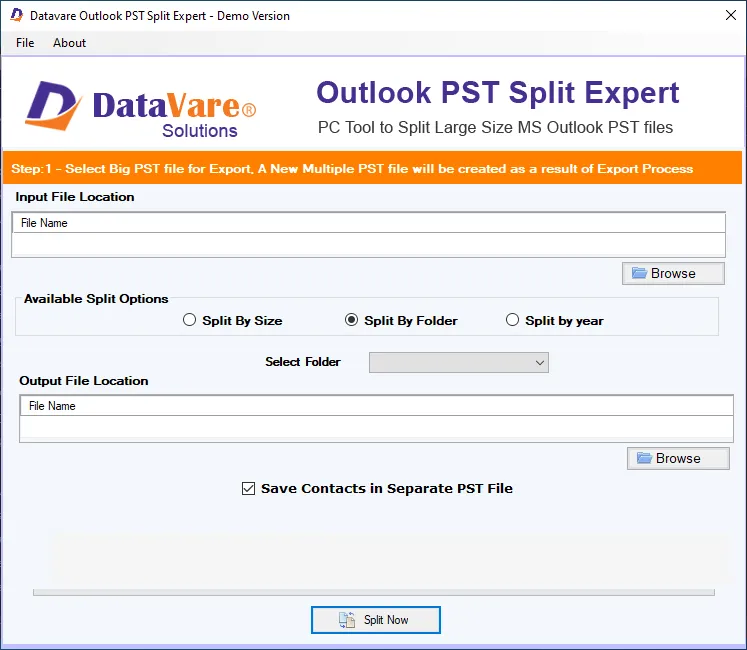
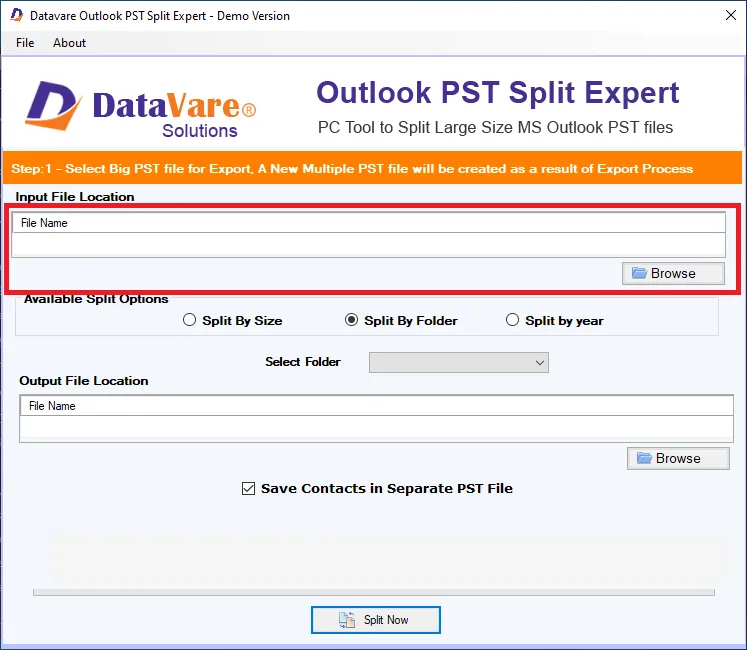
- Choose a PST file from your local storage and click the Browse option to locate it.
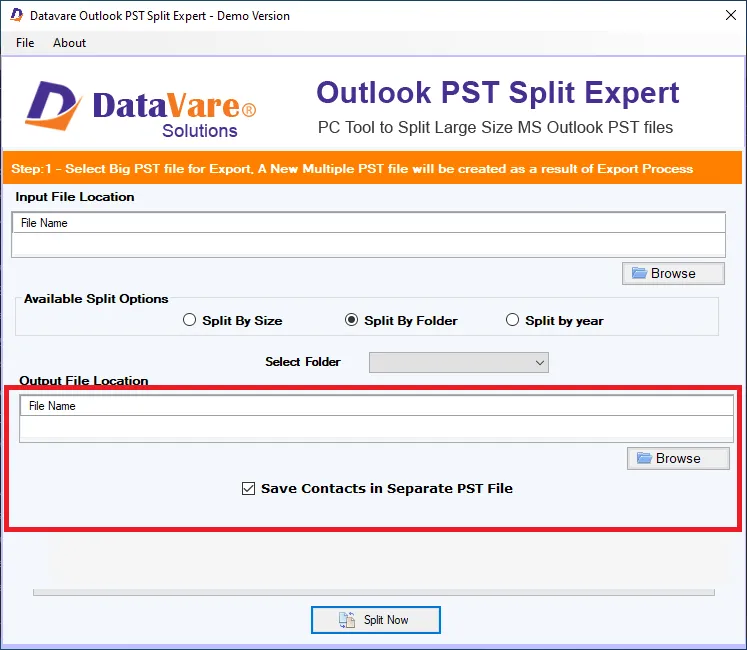
- Choose a location for the output.
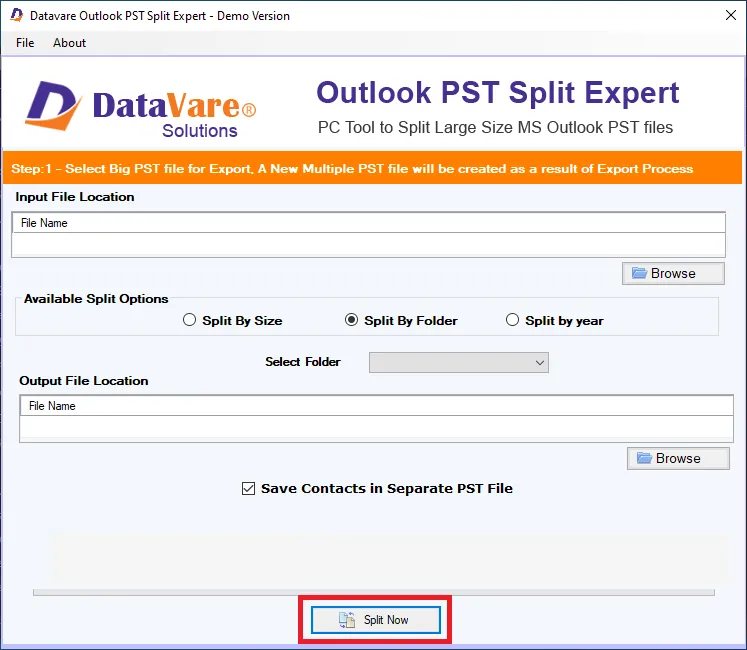
- After completing all steps, click the Split Now button.
Final Thoughts
At the end of the discussion, break up large PST files into smaller sections. We shared and thoroughly tested both automated and manual approaches. In which we discovered that using a professional-chosen solution is the best alternative for the user who wishes to break down a PST file into smaller portions without causing corruption while also saving time and effort. On the other hand, those opting for a free solution can employ the proposed manual workaround.

You must be logged in to post a comment.