

How to Speed Up a Slow Laptop: 8 Fixes That Actually Work
Your laptop used to feel snappy. Now every click feels like it's wading through mud, tabs freeze, and you've started quietly wondering if it's time to just buy a new one.
Before you spend hundreds of dollars on a replacement, it's worth knowing that most "slow laptop" problems come down to a small set of fixable issues — not a dying machine. Here are eight fixes that consistently make the biggest difference, roughly in order of how much impact they typically have.
1. Check How Much Storage You Actually Have Left

A hard drive or SSD that's over 85–90% full can slow an entire system down dramatically, since your computer needs free space to manage temporary files and virtual memory.
The fix: Check your storage in Settings (Windows: Settings → System → Storage; Mac: About This Mac → Storage). If you're near capacity, clear out large unused files, old downloads, and duplicate photos or videos first.
2. Disable Unnecessary Startup Programs
Many apps quietly configure themselves to launch automatically every time you turn on your laptop, competing for memory and processing power before you've even opened anything yourself.
The fix: On Windows, open Task Manager → Startup tab, and disable anything you don't need running immediately (chat apps, cloud sync tools, update checkers). On Mac, go to System Settings → General → Login Items and trim the list.
3. Clear Out Browser Bloat
Dozens of open tabs, unused extensions, and a bloated cache are one of the most common — and most overlooked — causes of a laptop that feels sluggish specifically when browsing.
The fix: Close tabs you're not actively using, remove browser extensions you no longer need, and clear your cache periodically. Consider a lighter browser if you routinely keep 20+ tabs open.
4. Run a Malware and Adware Check

Unwanted background processes from malware or aggressive adware can silently consume CPU and memory, especially if your laptop has slowed down suddenly rather than gradually.
The fix: Run a full scan with a reputable security tool (Windows Defender is a solid built-in option) and remove anything flagged. A sudden slowdown paired with unexpected pop-ups is a strong signal to check this first. For extra precautions going forward, check our essential laptop security checklist for everyday users.
5. Check for Pending Updates
Outdated operating systems and drivers aren't just a security risk — they can also cause inefficient resource usage that gets fixed in later updates.
The fix: Check for and install pending OS updates, then check for driver updates for major components (especially graphics drivers if you notice lag during video or visual tasks).
6. Upgrade From a Hard Drive to an SSD
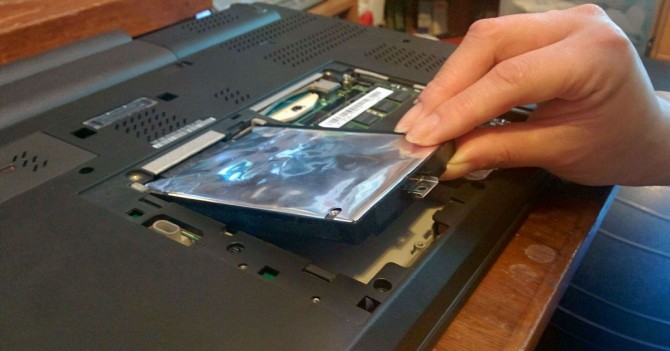
If your laptop still uses a traditional spinning hard drive (HDD), this is often the single biggest performance bottleneck — far more impactful than adding extra RAM in most cases.
The fix: If your laptop is a few years old and still on an HDD, upgrading to a solid-state drive (SSD) typically delivers one of the most noticeable speed improvements possible, often for less than the cost of a new laptop. Not sure where to start? See our beginner's guide to upgrading your own laptop SSD for a walkthrough.
7. Check Your RAM Usage Under Real Conditions
If you regularly have many browser tabs, editing software, and background apps open simultaneously, your system may simply be running out of available memory.
The fix: Open Task Manager (Windows) or Activity Monitor (Mac) while doing your normal work and see how close you are to maxing out RAM. If you're consistently near the limit, either reduce simultaneous open programs or consider a RAM upgrade if your laptop supports it.
8. Reset or Reinstall the Operating System (Last Resort)

Sometimes years of accumulated software, half-uninstalled programs, and system clutter build up in ways that individual fixes can't fully resolve.
The fix: Back up your files, then use your OS's built-in "reset" or "refresh" option, which reinstalls the system while optionally keeping personal files. This is a more drastic step, but it often restores near-original performance on laptops that are otherwise still capable hardware.
Quick Reference: Slow Laptop Fix-It Checklist
- ✅ Free up storage below 85% capacity
- ✅ Disable unnecessary startup programs
- ✅ Clean up browser tabs, extensions, and cache
- ✅ Run a malware/adware scan
- ✅ Install pending OS and driver updates
- ✅ Consider an SSD upgrade if still on an HDD
- ✅ Check real-world RAM usage
- ✅ Reset the OS as a last resort before replacing the laptop
Frequently Asked Questions
Is it worth upgrading an old laptop instead of buying a new one? Often, yes — especially if the laptop still has an HDD instead of an SSD, or is otherwise a capable machine slowed down by clutter rather than hardware failure. An SSD upgrade alone can meaningfully extend a laptop's useful life.
Why did my laptop suddenly slow down instead of gradually? A sudden slowdown is more often linked to malware, a pending large update installing in the background, or storage suddenly filling up — rather than general wear and tear.
Does closing background apps really make a noticeable difference? Yes, particularly on laptops with limited RAM. Startup programs and open browser tabs are among the most common hidden drains on both memory and processing power.
The Bottom Line
A slow laptop is frustrating, but it's rarely a sign you need to replace the whole machine. Work through these fixes in order — most people see a noticeable improvement after the first three or four steps alone, long before reaching for their wallet.

You must be logged in to post a comment.