

The QuickBooks "Cannot communicate with the company file" error typically arises when the QuickBooks Desktop application on one or more user computers cannot connect properly to the company file hosted on a server or another workstation. This can halt multi-user access and disrupt essential business operations. Fortunately, many straightforward steps can resolve this common connectivity problem.
![QuickBooks cannot communicate with the company file - [Fixed]](https://www.hostdocket.com/wp-content/uploads/2019/03/Error-QuickBooks-Unable-to-Communicate-With-Company-File.png)
Understanding the Causes
Several factors often lead to QuickBooks being unable to communicate with the company file:
-
Firewall blocking QuickBooks access: Firewalls or security software may block ports or applications necessary for QuickBooks to access the company file.
-
Incorrect hosting settings: Only the server machine should host the company file; other workstations need proper hosting configuration settings.
-
QuickBooks Database Server Manager not running: This service must be running on the server to allow communication.
-
Insufficient folder permissions: The folder containing the company file needs correct sharing and security permissions.
-
Outdated QuickBooks versions: Older versions can be blocked by security protocols or are incompatible with network settings.
-
Corrupted company file or network issues: Damage in the company file or network interruptions can also cause connectivity failures.
Step-by-Step Solutions to Fix the Issue
1. Use QuickBooks Tool Hub and Run QuickBooks File Doctor
Intuit provides the QuickBooks Tool Hub, a utility designed to diagnose and solve many common QuickBooks problems.

-
Download QuickBooks Tool Hub from Intuit’s official website.
-
Install and open the tool.
-
Select the Company File Issues tab.
-
First, click Quick Fix My Program to quickly attempt to fix any program issues.
-
If the problem remains, choose Run QuickBooks File Doctor.
-
Follow on-screen prompts to scan both network setup and company file issues.
This tool will repair damaged company files and resolve network connectivity problems automatically, often fixing the error swiftly.
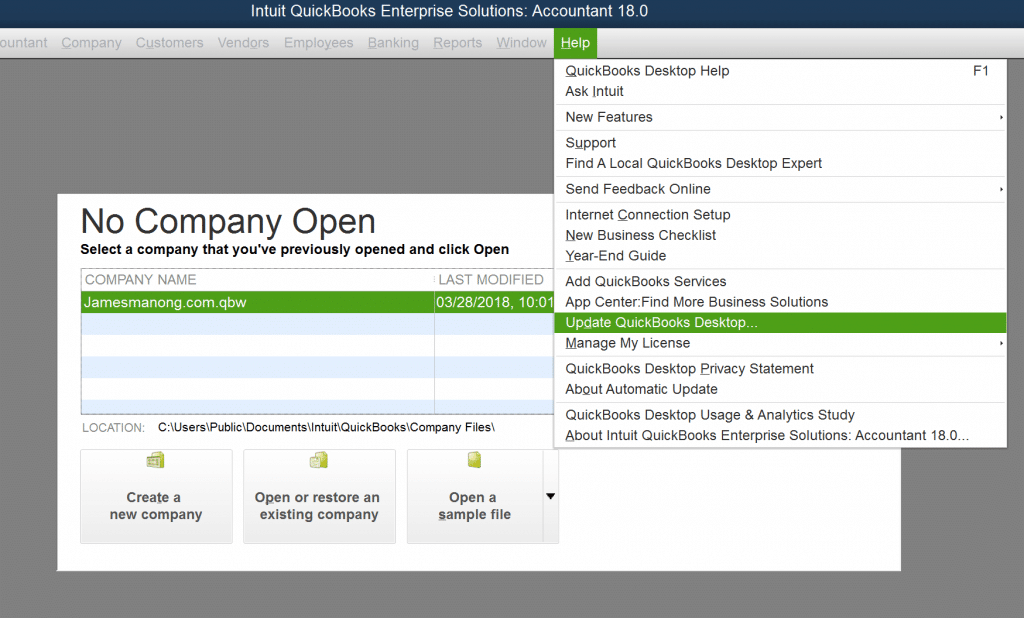
2. Update QuickBooks Desktop to the Latest Version
Running an outdated version of QuickBooks may cause connectivity issues.
-
Open QuickBooks Desktop.
-
Navigate to the Help menu and select Update QuickBooks Desktop.
-
Click Update Now and wait for the latest updates to download and install.
-
Restart QuickBooks and try accessing your company file again.
Timely updates ensure compatibility with network protocols and security software, reducing errors.
3. Check and Configure Firewall Settings Properly
Firewalls often block required QuickBooks ports or apps, preventing communication.
-
Identify your firewall and antivirus software.
-
Allow the following QuickBooks-related apps through the firewall: QuickBooks.exe, QBUpdate.exe, and QBW32.exe.
-
Ensure network ports used by QuickBooks (such as 8019, 56728-56733) are open for inbound and outbound traffic.
-
If unsure, use the QuickBooks Database Server Manager (explained next) to automatically manage firewall exceptions.
-
After adjusting firewall settings, restart your computer and check if QuickBooks accesses the company file.
4. Verify QuickBooks Database Server Manager is Running on the Server
The QuickBooks Database Server Manager (QBDBSM) manages multi-user access by hosting company file connections.
-
On the server, open QuickBooks Tool Hub.
-
Choose Network Issues and click QuickBooks Database Server Manager.
-
If not already installed, install QBDBSM.
-
Click Start Scan, navigate to the folder containing your company files, and let it scan.
-
The process will create or refresh
.NDfiles, which enable proper connection. -
Once completed, restart all workstations and try accessing the company file again.
5. Check Folder Permissions on the Server or Host Machine
Incorrect permissions can block network access.
-
On the server, locate the folder containing your QuickBooks company file.
-
Right-click the folder > Properties > Security tab > Advanced.
-
Find the user group
QBDataServiceUserXX(XX corresponds to your QuickBooks version year). -
Select Edit and ensure the following permissions are allowed:
-
Traverse Folder / Execute File
-
List Folder / Read Data
-
Read Attributes
-
Read Extended Attributes
-
Create Files / Write Data
-
Create Folders / Append Data
-
Write Attributes
-
Write Extended Attributes
-
-
If permissions are missing, add
QBDataServiceUserXXwith Full Control. -
Apply changes and close dialogs.
-
Also, ensure the folder is not set to Read-only.
6. Confirm Hosting Settings on Server and Workstations
In multi-user mode, only the server hosting the company file should have hosting enabled.
-
On each workstation, open QuickBooks and go to File > Utilities.
-
If you see Stop Hosting Multi-User Access, that computer is incorrectly hosting and must stop hosting.
-
On the server, verify that hosting is enabled by the same menu.
Improper hosting settings can prevent workstations from connecting to the company file correctly.
7. Perform a System Restore (Advanced)
If the error started recently after system or software changes, performing a system restore to a previous working state can fix corrupted network settings or software conflicts.
-
Go to Control Panel > Recovery > Open System Restore.
-
Follow prompts to restore your system to a date before the error started appearing.
-
Restart and check QuickBooks.
Important Tips
-
Always backup your company file before performing extensive troubleshooting.
-
Avoid storing your company file on external drives or cloud folders directly to prevent access issues.
-
Keep QuickBooks, Windows, and antivirus software updated regularly.
-
If none of the above steps solve the problem, contacting QuickBooks support or a certified ProAdvisor is recommended for advanced assistance.
Frequently Asked Questions (FAQs)
Q1: Why does QuickBooks say "Cannot communicate with the company file" even after I allowed it through the firewall?
This can occur if the firewall is not configured to allow all required QuickBooks executable files and ports, or if the QuickBooks Database Server Manager is not running on the server. Also, incorrect file-sharing permissions or multi-user hosting settings may cause the issue.
Q2: How do I know if QuickBooks Database Server Manager is properly running?
You can check this by opening the Tool Hub’s Network Issues tab and selecting QuickBooks Database Server Manager. If it’s running, you should be able to scan your company file folder. If not installed or not running, install or start it, then perform a scan to create/update server files to facilitate connectivity.
Q3: What if QuickBooks file doctor does not fix the problem?
If QuickBooks File Doctor fails to resolve the error, try updating QuickBooks to the latest version, manually adjusting firewall and folder permissions, and verifying network connectivity settings. If the problem persists despite these efforts, contacting QuickBooks support or consulting a professional technician is advisable.

You must be logged in to post a comment.