

MSG files contain message objects such as emails, attachments, contacts, tasks and so on but vCard files use a standard to store and transport contact information since the files support numerical, textual, picture and audio files. vCard is one of the greatest alternatives for carrying or sharing contacts on any platform including Windows and Android. Now, follow the instructions to convert MSG contacts to VCF.
Reasons for Converting MSG Contacts to VCF
- Converting MSG files to VCF/vCard simplifies contact management by storing contacts, email addresses and addresses in a dedicated format. This makes it easier to import/export and arrange contacts.
- vCard/VCF files are compatible with various platforms and devices including phones, email clients and contact management applications. This makes it easy to transfer the files across multiple systems.
- Easily import contacts from Outlook to Gmail, Apple Mail or Thunderbird by converting MSG files to vCard format.
- Portability: vCard files can be simply shared via email, transferred to mobile devices or uploaded to cloud storage. MSG files are only supported by Outlook or a specific tool and email client.
Manually Converting MSG Contacts to VCF/vCard with Outlook.
In this method, we'll utilize Outlook to convert MSG contacts to VCF/vCard. If your MSG file is already in Outlook that is fine; otherwise you can import it into Outlook first, then follow the steps outlined in this part and execute them exactly to ensure that the method is processed appropriately.
- Open Outlook Email Client.
- Once the program opens, go to Contacts.
- Select Outlook Contacts to share a vCard option.
- Go to the top left corner of Outlook and select File.
- To proceed, select the save as option in the file menu tab.
- In the save as type window select vCard as the format to save the file.
Why the Manual Method is not the Best for Converting MSG Contacts to VCF
- Converting several MSG files or contacts to vCard manually might be time-consuming.
- The manual technique requires Outlook and cannot be processed without it.
- Outlook does not support bulk conversion of MSG files into vCard. You must process the files one by one.
- Risk of Data Loss: Ensure contact information is well-structured in the MSG file to avoid inaccurate vCard collection.
Expert Method for Converting MSG to vCard
DataVare MSG to VCF Converter Expert includes a variety of file conversion options including MSG to vCard. The software includes a variety of features as well as an advanced user interface. The software benefits both technical and non-technical users. The program allows users to convert MSG to vCard in bulk by selecting a folder. Follow the steps outlined below in this technique and execute them accordingly:
Step 1: Install and launch the MSG to vCard Converter on any Windows operating system.
Step 2: To add MSG files select the "Select Files" and "Select Folder" options.
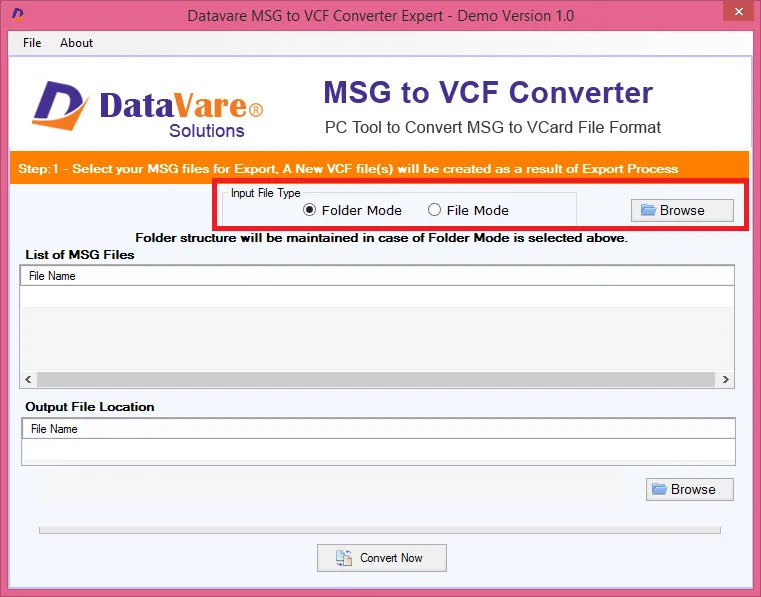
Step 3: When you import MSG files a list of MSG files will show.
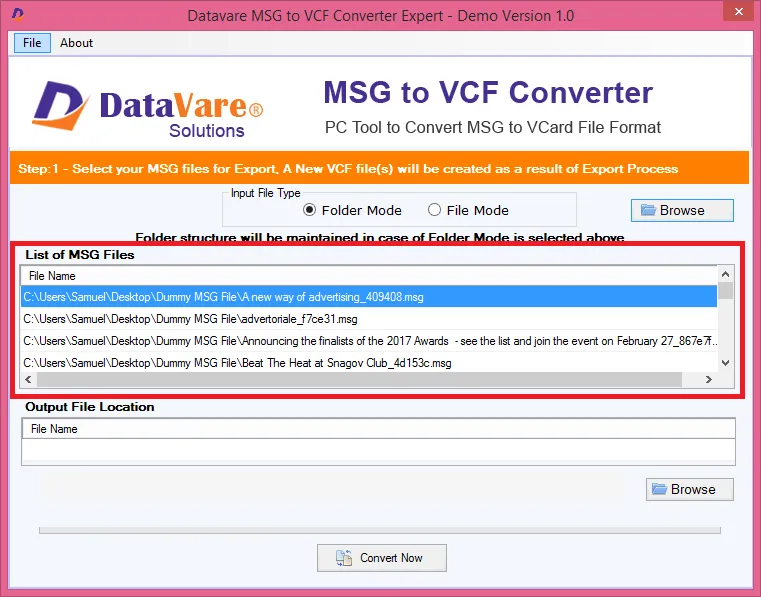
Step 4: After examining the files choose a location for the result.
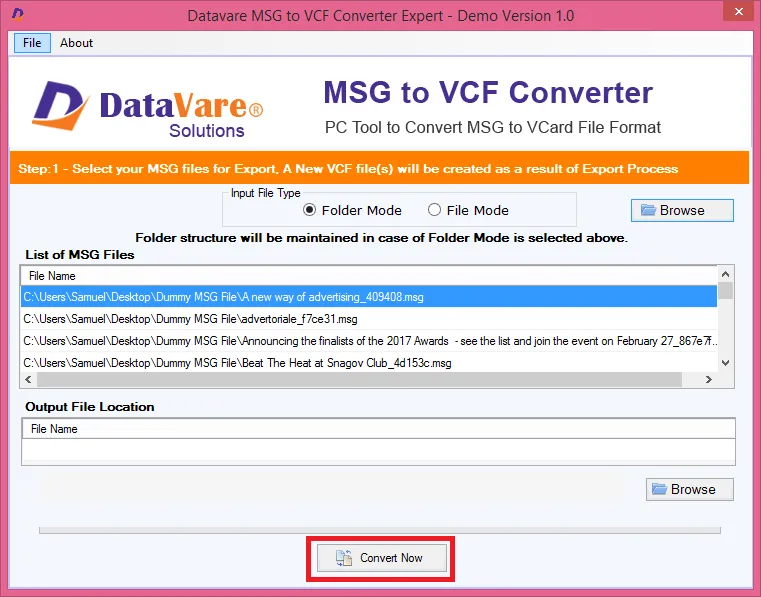
Step 5: Once you've completed all of the steps above click the Convert Now option.
Conclusion
In this article we examined all of the techniques for converting MSG contacts to VCF. The solutions allow users to simply convert MSG to vCard. The manual technique can take longer and has some restrictions in converting the MSG file to vCard. The provided expert method is charged, however, it includes several additional features and functionalities that will make converting the MSG file easier. The commercial program also includes a free trial period allowing users to adequately test and evaluate the software. Overall, both approaches can complete the procedure allowing users to use any of the software.

You must be logged in to post a comment.