
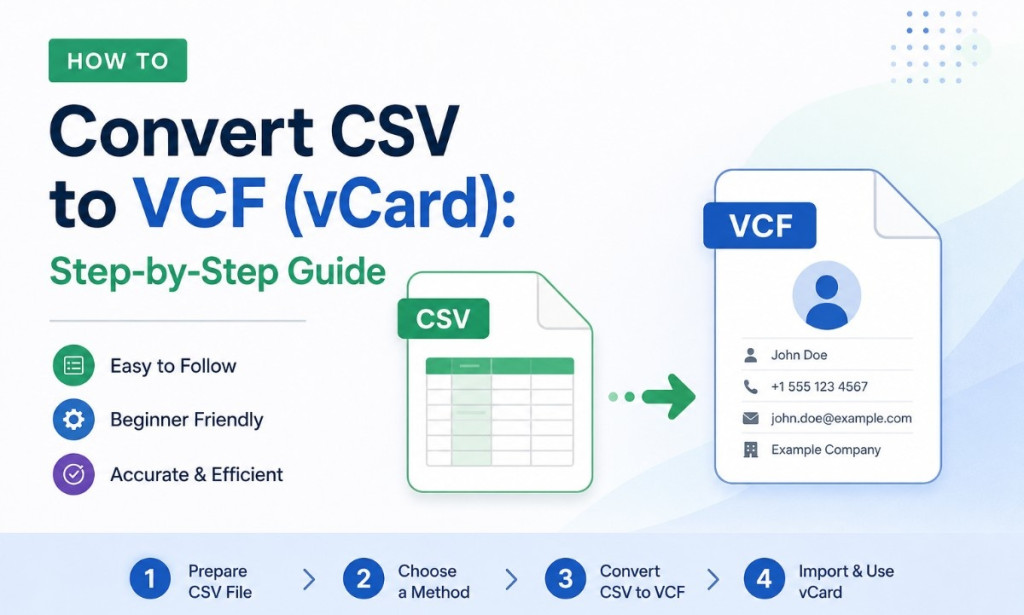
Many individuals use CSV and VCF files to transfer contacts and data across different apps or services. These files help you keep things organized whether it is a list of phone numbers, contacts or other important information. There are certain distinctions between CSV and VCF files that may necessitate choosing one format over the other depending on your requirements. So, if you want to convert CSV to VCF files here are the three best approaches to do so. If you want a simple solution you can utilize CSV to vCard Converter. It allows you to convert multiple CSV files into VCF format quickly and effortlessly.
What Is CSV and VCF Files?
CSV files are simple lists. They contain rows and columns of information, with commas or other markers separating each item of information. You can easily open them in spreadsheet tools like Excel or Google Sheets.
VCF files are used to preserve contact information such as names, phone numbers and email addresses. Users frequently use them to transfer contacts between phones, email applications and other contact management systems.
Three Proven Methods for Easily Converting CSV to VCF/vCard
Converting CSV files to VCF format is a multi-step procedure, but you may accomplish it easily with your computer's Contacts and Google Contacts programs.
Method 1: Using Windows Contacts
First, you'll have to execute two different parts: import and then export.
Step 1: Import Contacts from a CSV File
- To access Contacts, click the Windows symbol and search for it.
- In the Contacts window, choose the 'Import' option.
- Choose CSV as the file type and click 'Import.'
- Locate and pick the CSV file containing the contacts you wish to migrate.
- Click 'Next' and 'Finish' to finish the import.
Step 2: Export Contacts to VCF Files
- In the same window, choose 'Export.'
- Choose vCard (folder of .vcf files)' and click 'Export.'
- Choose the folder where CSV file is saved.
- Determine where to save the updated VCF files.
- After clicking 'Finish,' your contacts will be in VCF format.
Google Contacts is another useful tool for converting CSV to vCard format. Here is how you can do it:
Method 2: Use Google Contacts
- Open your web browser.
- Enter 'Google Contacts' into the search box and connect in using your Google account.
- After clicking 'More', select 'Import' from the list.
- Press the 'Select File' button.
- To import your contacts, choose the CSV file and click the 'Import' button.
- Click 'More' again and select 'Export' from the available options.
- Export the contacts you've just imported. Choose 'vCard' as your desired format.
- After clicking 'Export,' your contacts will be in the new VCF format.
Cons of Performing Manual Solutions
The manual methods to convert CSV files to VCF have some drawbacks:
- These methods only support converting one CSV file to VCF at a time.
- Managing large CSV files with high data volume might be challenging.
- Doing it manually is time-consuming.
- Technical knowledge is required to complete this process.
- The overall process is slow and lengthy.
A Reliable Application for Converting CSV Contacts to vCard Format
The Softaken CSV to vCard Converter is a superior solution for converting CSV to VCF files since it simplifies the process and eliminates the constraints of the manual technique. This program is professional and will convert your CSV files to VCF/vCard format without any problems. This application does not limit you and can process large amounts of CSV data quickly. It is loaded with useful feature making it the best option for this work.
Steps for Converting CSV Files to VCF
- Download, install and open the CSV to VCF Converter Tool on your system.
- Add a single CSV file or a folder containing many CSV files.
- The software displays information about the CSV file(s). Click 'Next.'
- Select the export file format, vCard version and location to save the transformed files.
- Click 'Convert' to convert CSV files to VCF format.
Final Words
Changing CSV to VCF makes it easier to manage and migrate contact information. Whether you use software or do it manually depend on how much things you have and what you enjoy doing. Keep your information safe, especially while utilizing online tools, by visiting websites. When you have the greatest option for converting CSV to VCF, you will be better able to manage your contacts across multiple devices and apps.

You must be logged in to post a comment.